Introduction
Welcome to the official documentation for Mews, a Ghost theme designed to deliver a high-end editorial presence for publishers.
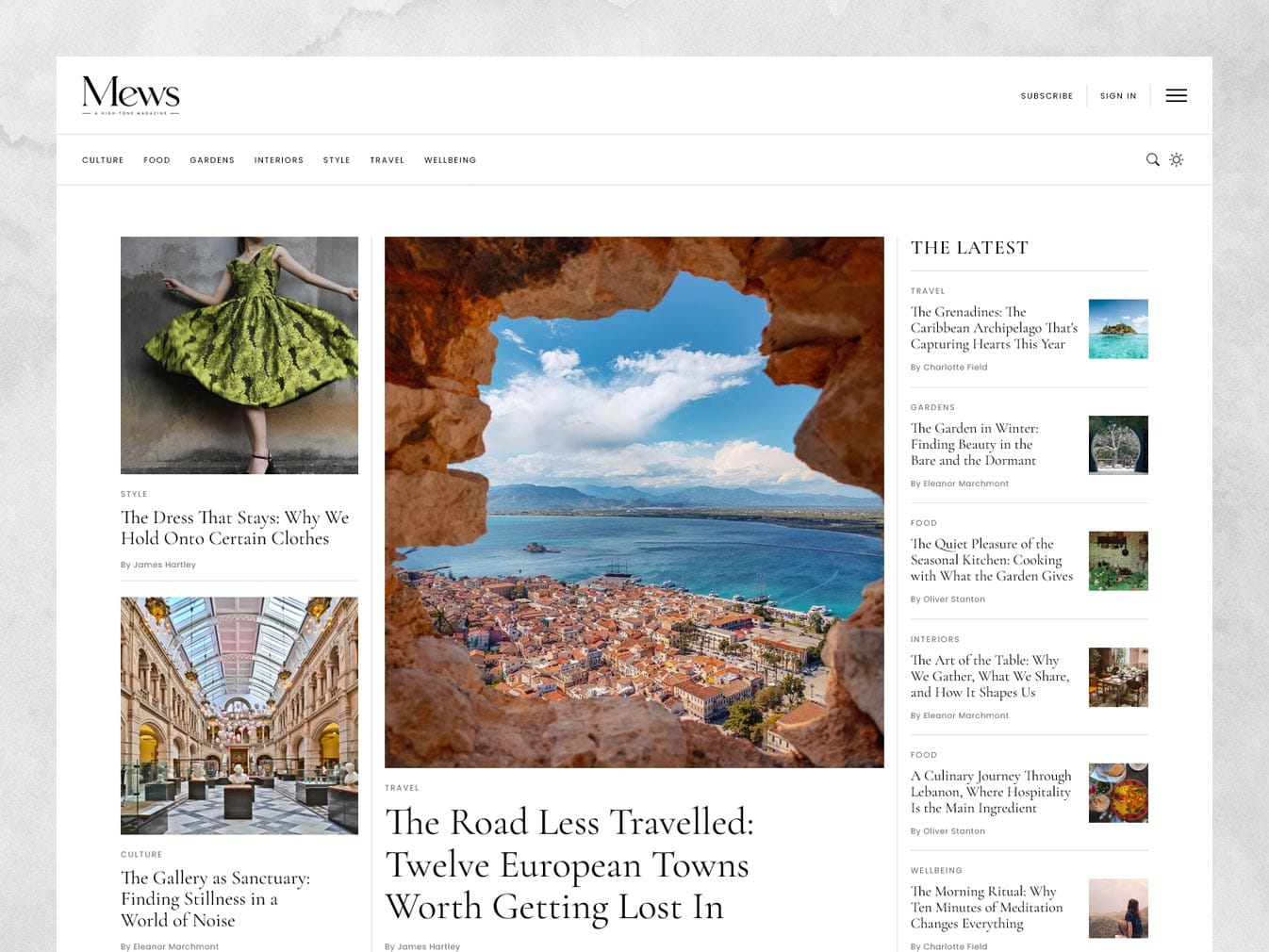
This guide will provide detailed instructions on everything you need to get the most out of theme including initial setup, configuration and custom theme options.
Please note that while this documentation covers the Mews theme in detail, it assumes a foundational understanding of the Ghost CMS platform. If you are new to Ghost, we recommend familiarizing yourself with the official Ghost Help Center for guidance on core concepts.
Installation
- Log in to your Ghost Admin dashboard.
- Navigate to Settings → Theme in the left-hand sidebar, or scroll down to the Theme section.
- Click the Change theme button.
- At the top right, click Upload theme
- Select the
mews.zipfile you received upon purchase. - Wait for the upload and validation process to complete—Ghost will automatically check the theme's structure and compatibility.
- Once uploaded, click Activate to make Mews your live site theme.
Theme settings
Navigate to Settings → Design and branding and click Customize. In the right-hand sidebar under the title Design, you'll see two tabs: Brand and Theme.
Firstly let's look at the Brand options; these are the default Ghost theme settings:
Ghost theme settings
- Accent color - In the Mews theme the accent color is used for buttons, and to highlight inline links in your post content. These colors are only active in light-mode. In dark mode colors are predefined to ensure appropriate contrast.
- Publication icon - This icon (or favicon) appears in browser tabs, bookmarks, history, and search engine results, helping users easily identify your site. The icon should be clear and simple to ensure it's legible at small display sizes.
- Publication logo - Add your main site logo here, which will be displayed in the header and footer. If no logo is added the site title will be displayed as text instead.
- Publication cover - This is a banner image that is displayed at the top of post index pages on some themes, and as the site's open graph image.
- Typography - Here you can change Mews's default heading and body fonts with a curated selection of alternatives provided by Ghost. By default Mews uses Charter as it's body font, which has excellent readability and legibility at all sizes. For titles, Mews uses Cormorant Garamond, providing an editorial elegance.
Mews theme site settings
Once you've finished with the default Ghost theme settings, it's time to move on to the custom theme settings, which are specific to Mews. Switch from the Brand tab to Theme and you'll see the following options:
- Color scheme - Mews has built-in dark mode support. With this setting you can choose whether to force Light or Dark modes, allow the user to decide with User Toggle, or automatically match the visitors browser/OS settings with System. If User Toggle or System are selected, a toggle will be displayed in the header allowing the visitor to switch color schemes.
- Fade in page elements - Page elements are animated, fading upwards into view as you scroll down the page. You can toggle this feature on/off here.
- Enable Ads - Toggles ads display on/off. See Ads for more information
- Centered header - Switch between two header layouts, with the header logo being either left aligned, or centered.
- Alternate logo - Mews will automatically invert your main Publication Logo when in dark mode and/or if the footer is set to a dark background color. You can override this by providing your own logo for use in dark mode here.
- Footer background - You can set the footer color scheme to Accent, Light or Dark. The Light setting will be overridden if the site is in dark mode.
- Social Links - Add a comma separated list of your social media URLs. Mews will automatically assign them the correct icons and display them in the site footer. Use the full site URLs rather than short links to ensure maximum compatibility.
The following social media sites are supported:- Bluesky
- Discord
- GitHub
- Mastodon
- Medium
- Snapchat
- Spotify
- Substack
- Threads
- TikTok
- Twitch
- Twitter (X)
- Vimeo
- YouTube
- Footer subscribe CTA title - Add a title for the subscribe form displayed (for non-subscribed visitors) in the footer.
- Footer subscribe CTA text - Add a short sentence or strap-line for the footer subscribe form.
- Footer credit - Override the default footer credit text with your own content. Use HTML to add links, etc.
- Featured post style - select how featured post snippets are displayed across the site. There are three options:
- Text below image - The feature image is displayed, with the post title and meta data displayed below.
- Text over image - The post title and meta data are displayed on top of the image. A dark gradient is added behind the text to keep it legible.
- Split left - A 50/50 two column layout with the image on the left and the text on the right.
- Split right - As above, but flipped.
- Post thumbnail image shape - Choose the image shape for standard post snippets: Landscape, Portrait or Square.
Mews theme homepage settings
After the site wide settings, you'll see a section for Homepage settings. For more information on these settings and what they do, please see the Homepage section.
Site navigation
There are three navigation areas in Mews that we need to consider: the main header menu, the tag header menu, and the footer menu.
Main header menu
The main header menu is opened using the hamburger icon on the right side of the header. To populate this menu go to Settings → Navigation and click Customize. In the modal (pop-up) that opens, make sure the Primary navigation tab is selected.
You can add your menu links here. This menu also supports nested links, where there is a parent link that has child links.
To make a child link:
- Add a double-dash and a space before the link title (e.g.
-- Page Title). - The link will now be a child of the first link above it that does not have the double-dash prefix.
- Parent links will transform into collapsible drop-downs containing their child links. These are now used to open/close the drop-down, rather than acting as page links, so you can just use a hash symbol (#) in place of a URL.
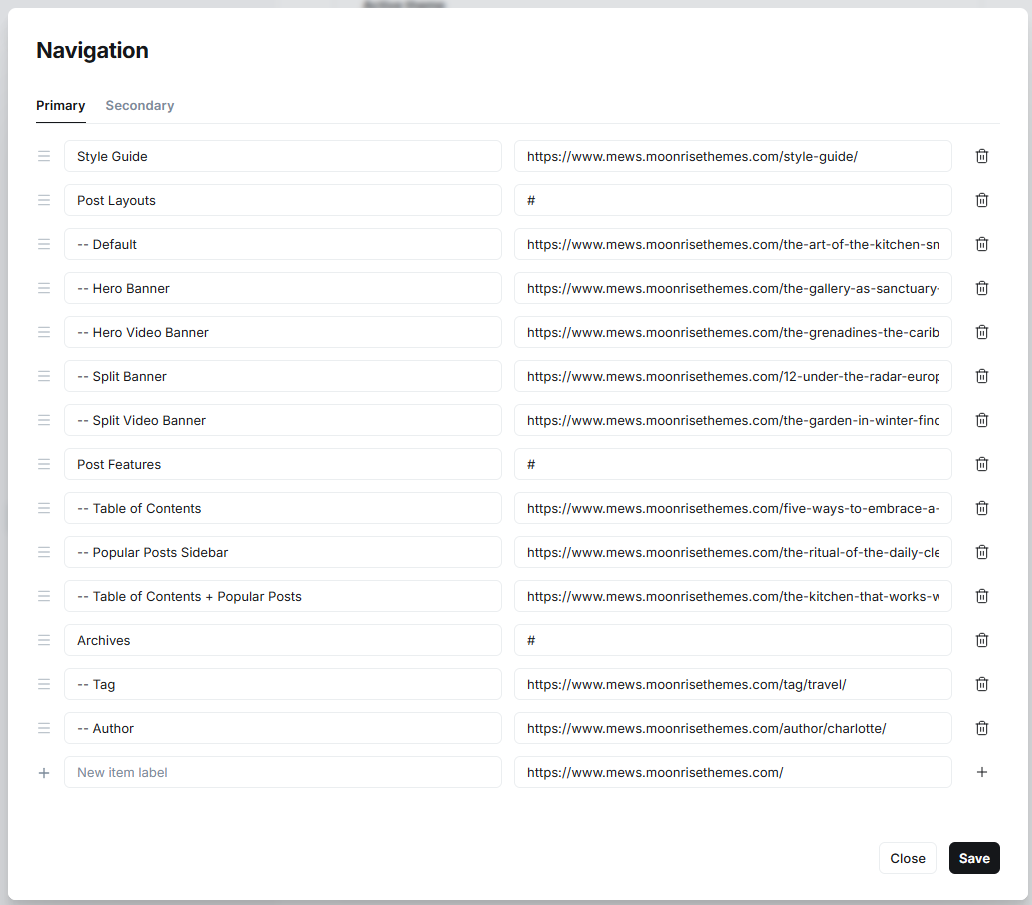
If no items are added to the primary menu, the hamburger icon will not be displayed in the header.
Tag header menu
The tag header menu is automatically populated with your post tags, displayed in alphabetical order. Only tags containing published posts will be shown.
Footer menu
To populate this menu go to Settings → Navigation and click Customize. In the modal (pop-up) that opens, select the Secondary navigation tab.
Footer menus links use a parent/child relationship to create the structure. Parent links are used as the titles for each menu section, and their child links sit below them.
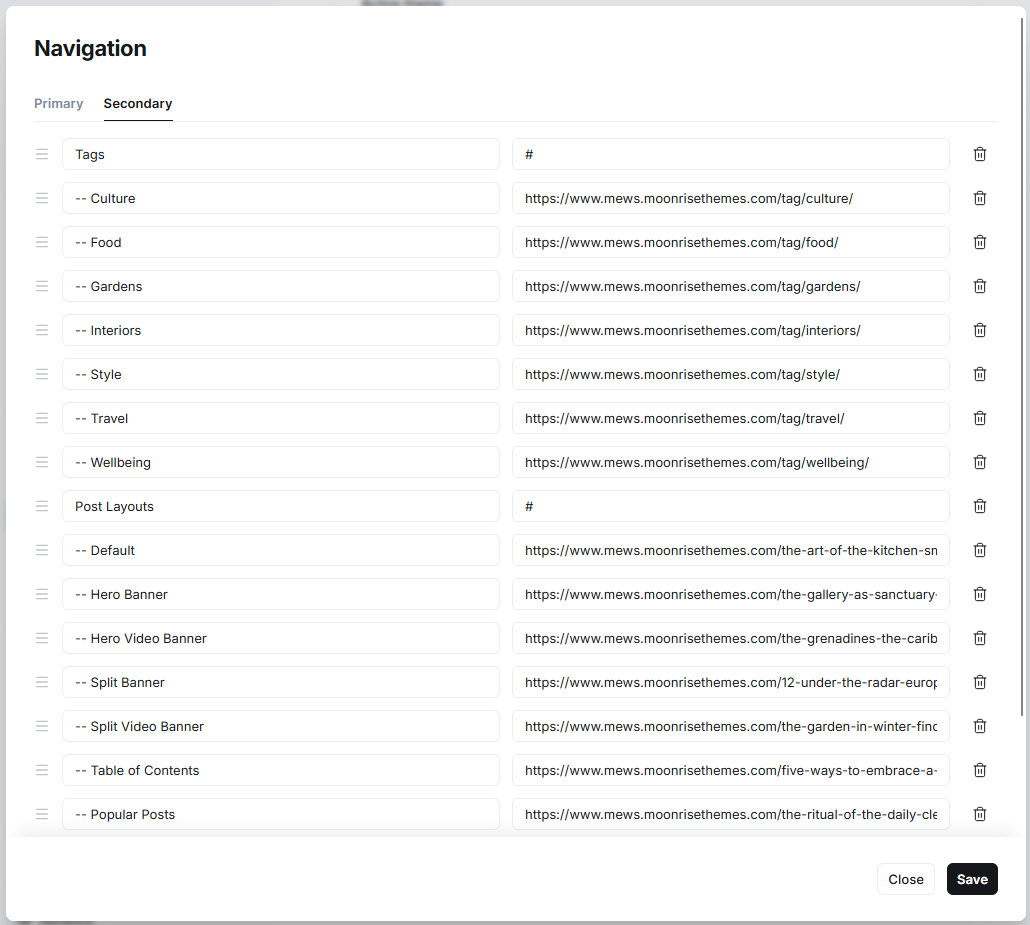
- Add a link, and give it a title to create a menu section. The URL can be a hash symbol (#) since the parent link will be acting as a title, not a link.
- Underneath the parent link add child links, prefixing them with a double-dash and a space (e.g.
-- Page Title). These links will then sit underneath the parent link title. - Repeat the process to create the full footer menu. A maximum of three menu sections is allowed. If you add more than this, they will be ignored by the theme.
Homepage
Mews's homepage is composed of several elements:
- Editorial post grid
- Featured post slider
- Spotlight post grid
- Featured post heroes
- Tag groups
- Subscribe CTA (call to action)
All of these elements are optional. You control which elements are displayed and where using a combination of internal tags and the Mews theme homepage settings.
Homepage Layout Composition
Mews's homepage layout has been designed utilising a hierarchy. The page starts with an optional featured post hero section, followed by post showcase sections; such as the Editorial post grid and Spotlight post grid. After this tag groups are displayed, interspersed with Featured post heroes to break up the flow of the page.
Editorial post grid
The editorial post grid can show a combination of latest and featured posts, and is split into two areas. The left displays three posts and the sidebar on the right can display up to six posts.
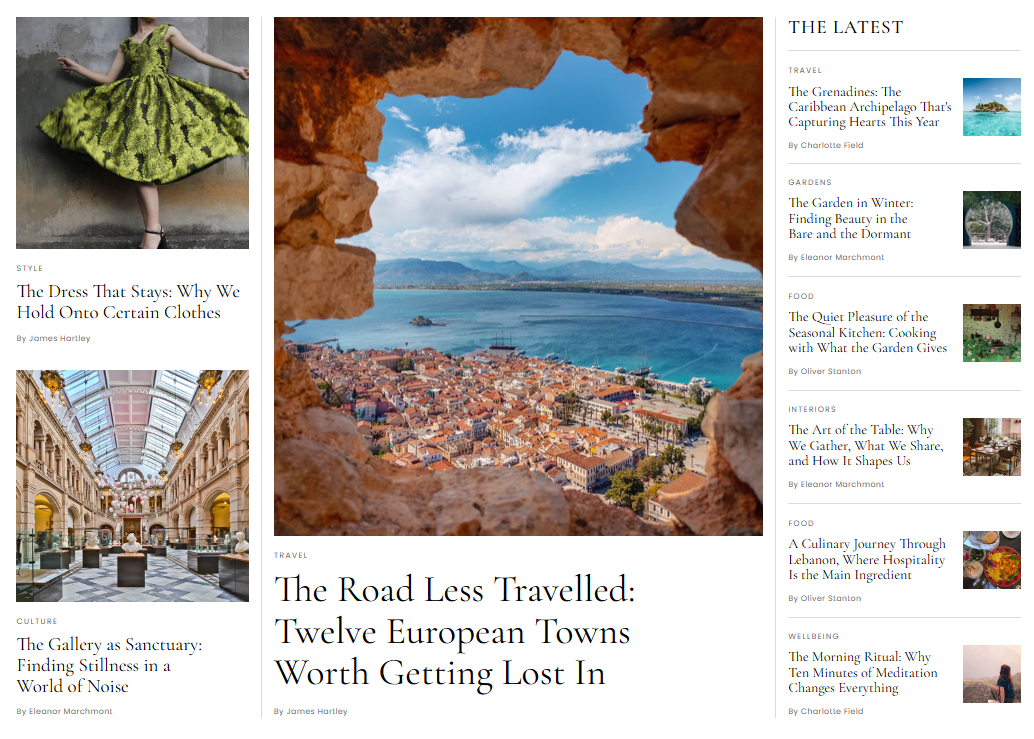
You can control what type of posts are displayed in each areas using theme options:
- Latest - Shows the latest posts across both areas
- Featured - Shows featured posts across both areas
- Latest/Featured - Shows latest posts in the left area and featured posts in the sidebar
- Featured/Latest - Shows featured posts in the left area and latest posts in the sidebar.
- Hide - Removes the editorial post grid from the homepage. If this section is hidden then the Spotlight post grid is promoted to the top of the homepage (if populated).
Ensure you have enough posts to populate the grid otherwise there could be gaps. Posts that are set to display in other sections on the homepage are excluded from this section to avoid post duplication.
Featured post slider
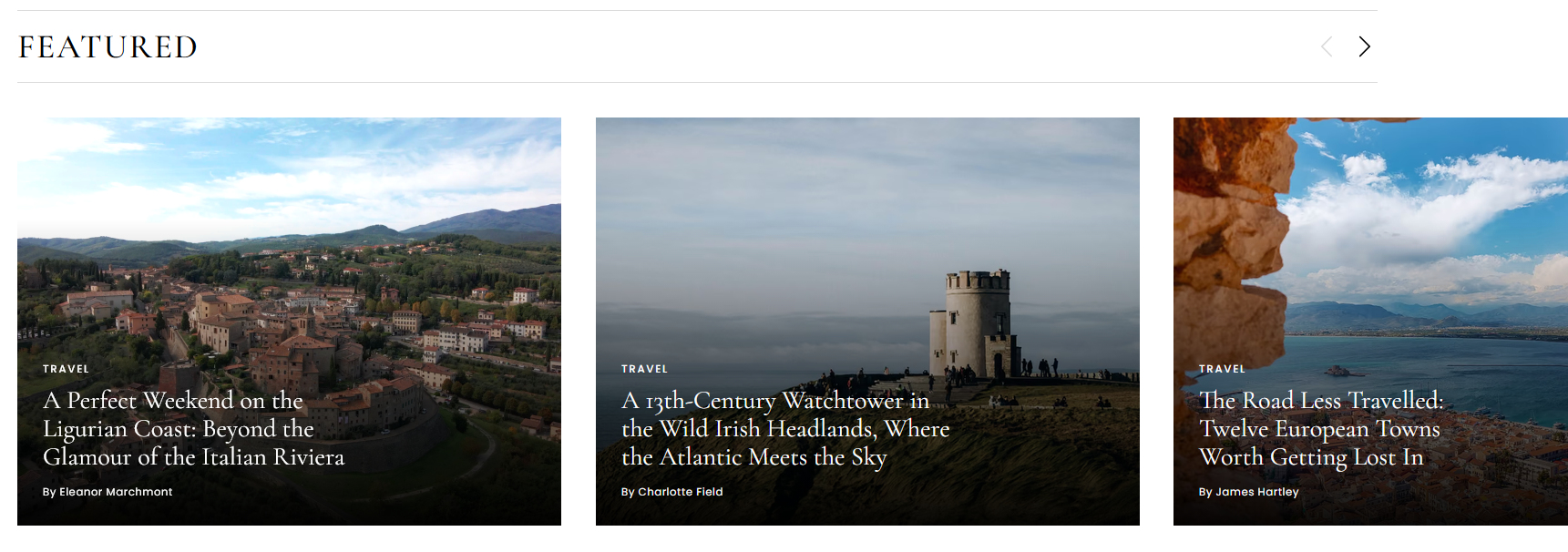
This section is displayed if there is at least one post with the internal tag #home-featured-slider . It is recommended that you use at least three posts here to populate the slider.
You can select one of two display types for the featured post slider in the Mews theme homepage settings :
- Text below image - The feature image is displayed, with the post title and meta data displayed below.
- Text over image - The post title and meta data are displayed on top of the image. A dark gradient is added behind the text to keep it legible.
Spotlight post grid
This section is displayed if there is at least one post with the internal tag #home-spotlight .
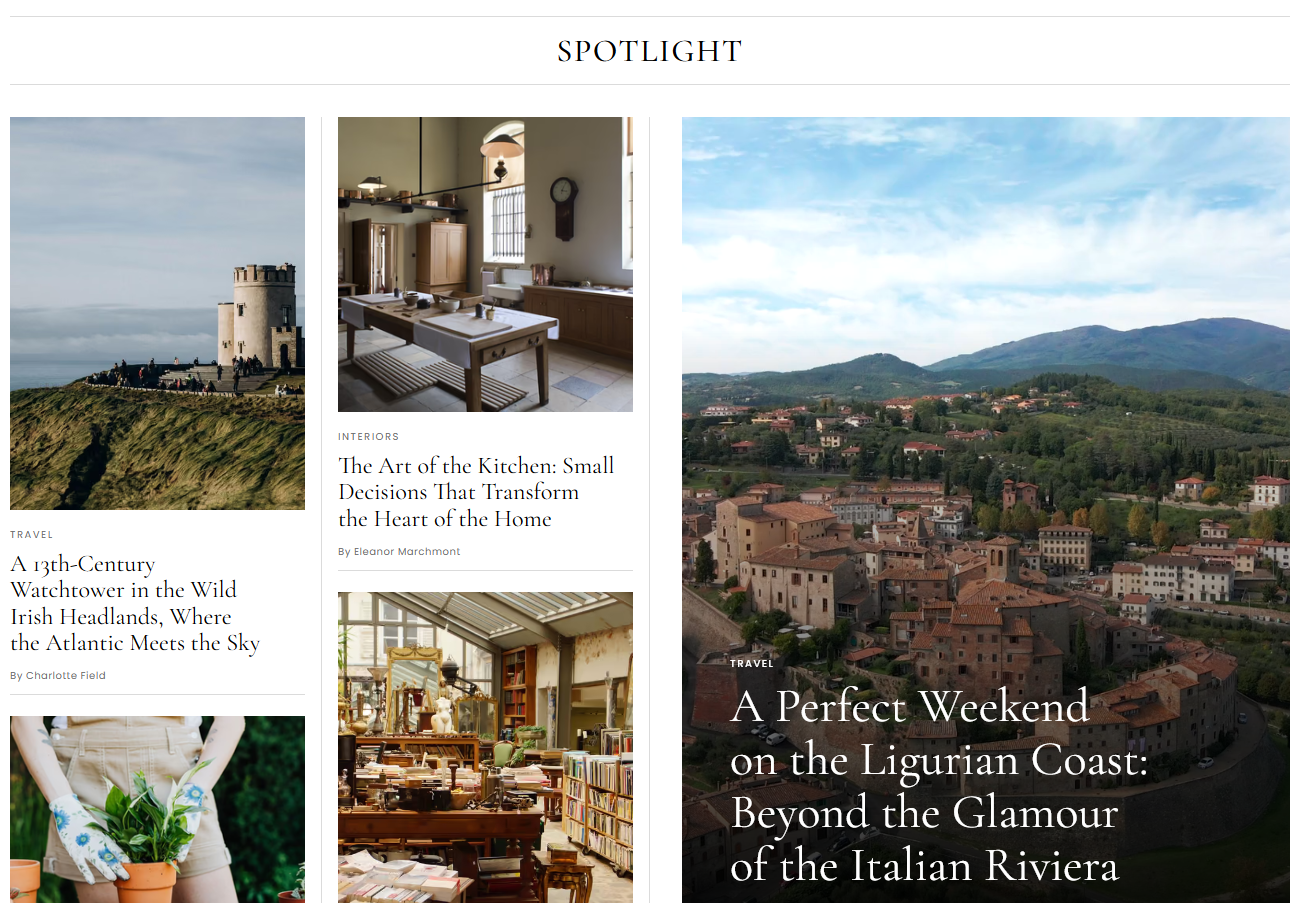
It is recommended that you use at least seven posts here to populate the grid. If the Editorial post grid is hidden then this section is promoted to the top of the page.
Featured post heroes
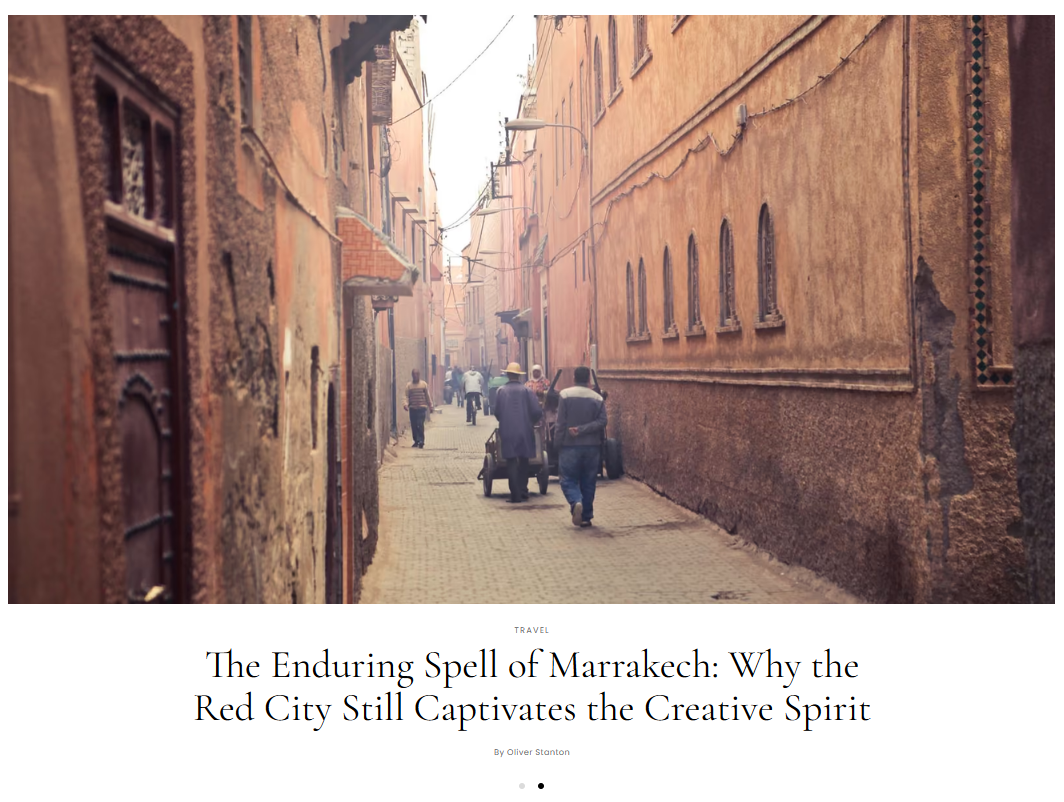
You can have up to three featured post hero sections, which are displayed throughout the homepage. Each section will appear if there is at least one post with the internal tags below.
#home-featured-top
Appears at the top of the homepage, before everything else.#home-featured-middle
Appears mid-way down the homepage, after showcase elements such as the editorial and spotlight grids.#home-featured-end
Appears towards the end of the page, amongst the tag groups.
Tag Groups
Tag groups show groups of tags and the latest posts using that tag as their primary tag. They are displayed after the homepage's showcase elements. You can define which tags are displayed in each group in the Mews theme homepage settings.
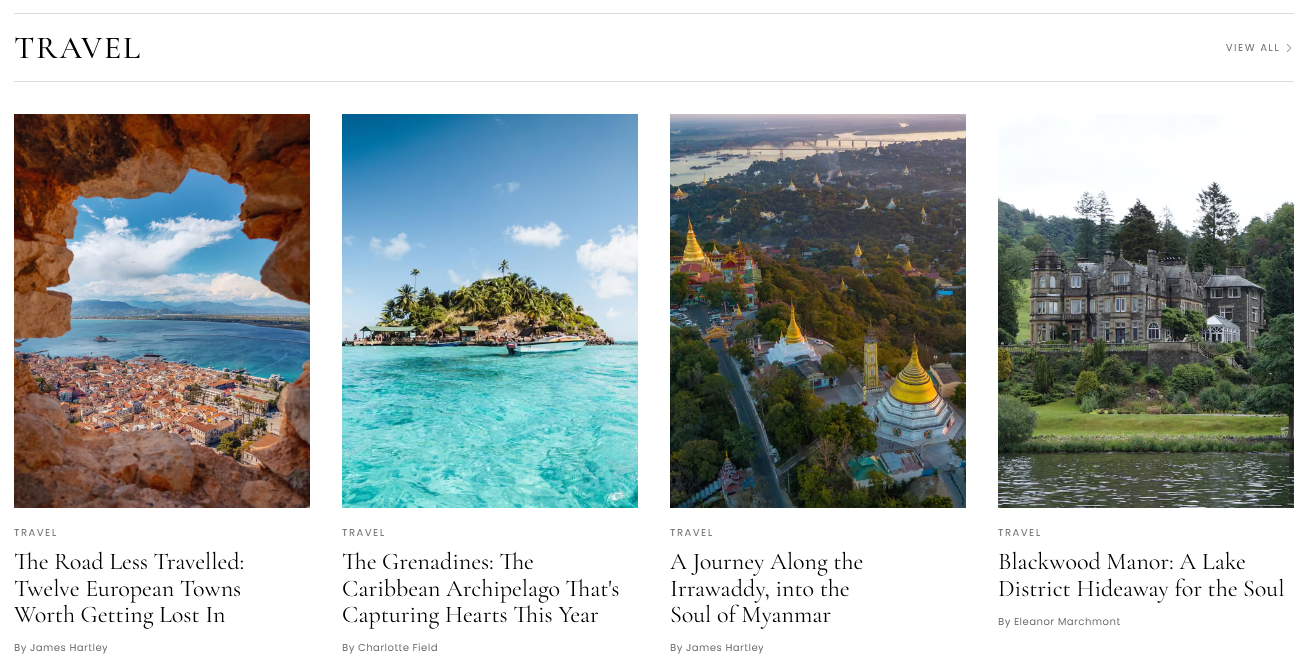
On the settings page you'll see a text box for each of the three tag groups Homepage tags group 1, Homepage tags group 2, and Homepage tags group 3 - add a comma-seperated list of the tag slugs you would like to appear in each group.
- Homepage tags group 1 - displayed after the homepage showcase content, and before the
#home-featured-middlefeatured posts (if used). It is recommended to add just a couple of tags here. - Homepage tags group 2 - displayed after the
#home-featured-topfeatured posts and before the#home-featured-endfeatured posts (if used). It is recommended to add just a couple of tags here. - Homepage tags group 3 - displayed at the end of the page, after everything else. You can show any remaining tags that you wish to display on the homepage here.
Each tag should have at least four posts using the tag as their primary tag, to avoid gaps in the layout.
Subscribe CTA (call to action)

The Subscribe CTA is a call-out to unregistered users to subscribe. It will only appear if the Subscribe CTA text text field in Mews theme homepage settings is populated. It's position is handled automatically, depending on what other elements are being displayed on the homepage.
Posts
Post Templates
To change the post template, open the Post settings sidebar by clicking on the icon at the top right of the post editor. Mews has four post templates to choose from:
- Default - The standard post template, showing the post title and meta, followed by an optional featured image, then the post content.
- Hero - The post title, meta and featured image are displayed in a full-height banner, followed by the post content.
- Split Left - The post title, meta and featured image are shown in a full-height two column layout with the image on the left and text on the right.
- Split Right - As above, but flipped.
Post Sidebar
You can use internal tags to display the Table of Contents and Popular Posts widgets. Please note that full-width and wide-width post cards will only be as wide as the main post body when the sidebar is active.
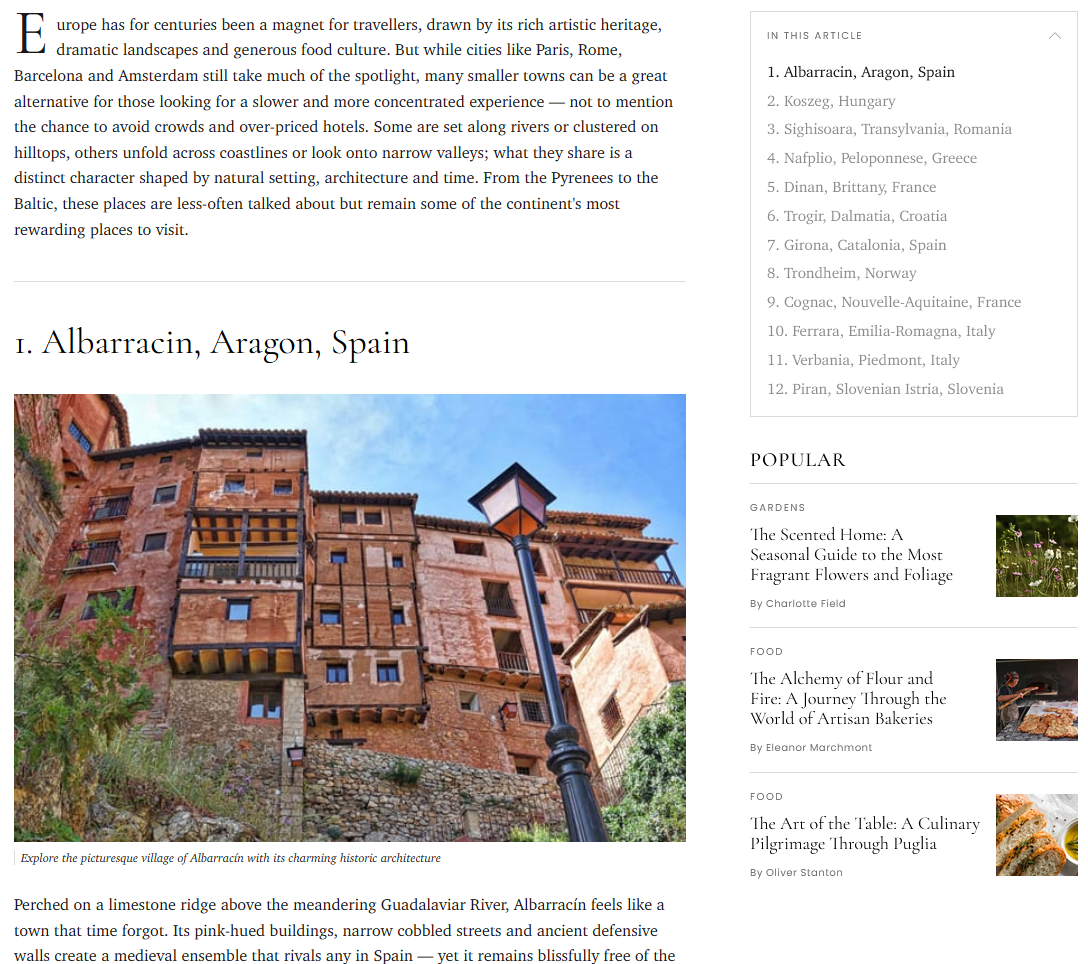
- Table of Contents - Add the internal tag
#sidebar-tocto the post to display a table of contents in a sidebar to the right of the post. This table of contents displays all the Heading 2 titles in your post. As you scroll down the page, the current heading is highlighted. You can click on each heading in the table of contents to automatically scroll to that point in the post. - Popular Posts Widget - Adding the internal tag
#sidebar-popular-poststo the post will display a Popular Posts widget in a sidebar to the right of the post. Posts that have been given the internal tag#popular-postwill be shown here, up to a maximum of three.
Featured Videos
Posts using the hero or split templates can show a featured video in place of the featured image. The video will be muted, autoplay, and loop.
To show a featured video:
- Add the internal tag
#featured-videoor#featured-video-globalto your post. - Add a video card as the first item in the post.
- The video from this card is shown in place of the featured image.
- The video card itself is hidden from the post.
#featured-videowill show the video only on the post itself.
#featured-video-global will show the video on the post itself and on the post's featured post blocks, spotlight block snippets, and the large central snippet in the homepage editorial block. Use this tag sparingly to avoid bogging down your site's performance, two or three posts max.
Tag Archives
Tag archives show all the posts belonging to that tag. The tag archive in Mews shows:
- The tag title followed by the tag description (if one has been added in the Ghost dashboard).
- Featured posts, shown in a featured posts hero block. If there is more than one featured post the hero block will act as a slider.
- The remaining posts are shown, eight at a time. Clicking the "Load More" button will display eight more, until all posts are shown.
Author Archives
Author archives show all posts belonging to that author. The author archive in Mews shows:
- The authors cover image (if added), name, location (if added), bio (if added), and social media links (if added).
- The author's posts are shown, eight at a time. Clicking the "Load More" button will display eight more, until all posts are shown.
Ads
Mews can display Ads, such as Adsense, using four ad slots which are incorporated into the design. Ads are turned off by default. Ads will not be displayed to paying members. Only ad slots which have a corresponding ad page will be displayed.
- Turn on Enable Ads in Mews theme site settings
- Depending on the Ad provider, you may need to use Code injection to inject some code into the site <head>.
- Create pages for each of the ad positions you wish to use, using the page title/slugs below, and change the page template to Ad.
- Ad top (ad-top)
- Ad mid (ad-mid)
- Ad end (ad-end)
- Ad sidebar (ad-sidebar)
- Add an HTML card to the page, paste in your ad code and publish the page.
- Ads will now show up in their corresponding slots.
Since our ad pages only exist to supply the ad code to our ad slots, we don't want visitors or search engines to see these pages; therefore the Ad page template itself displays blank and is set to noindex.
If your using Adsense, the following add units are recommended for each slot:
- Ad top, Ad mid and Ad end - Display ad/horizontal/responsive or in-article ad.
- Ad sidebar - Display ad/square/responsive or In-article ad
Publication Language
Change Ghost's publication language by going to Settings → Publication Language. This will change the language of Ghost's native elements, such as the sign-up and subscribe process, comments and emails. To change the language or wording of Mews's hardcoded elements, such as button labels and section titles please see code injection.
Code Injection
Ghost's code injection allows you to add CSS, JS and more into your site header or footer to customise your theme. To use code injection go to Settings → Advanced → Code Injection and click Open.
Site Labels
One of the main use cases for code injection in Mews is to modify hardcoded text such as button labels and section titles to another language or... whatever you like. In the Site Header tab of the code injection window and paste in the code below. You can then change the text in "content" as required e.g. {content: 'Your Text Here';}
<style>

  /* ============================================
     HEADER AND FOOTER
     ============================================ */

  /* Header Subscribe Button */
  .btn-navbar-subscribe span {display: none;}
  .btn-navbar-subscribe:after {content: 'Subscribe';}

  /* Header Sign In Button */
  .btn-navbar-sign-in span {display: none;}
  .btn-navbar-sign-in:after {content: 'Sign In';}

  /* Header Account Button */
  .btn-navbar-account span {display: none;}
  .btn-navbar-account:after {content: 'Account';}

  /* Footer Subscribe Button */
  .btn-footer-subscribe span {display: none;}
  .btn-footer-subscribe:after {content: 'Subscribe';}


  /* ============================================
     HOMEPAGE
     ============================================ */

  /* Homepage Editorial 'Latest' Title */
  .editorial-title-latest span {display: none;}
  .editorial-title-latest:before {content: 'Latest';}

  /* Homepage Editorial 'Featured' Title */
  .editorial-title-featured span {display: none;}
  .editorial-title-featured:before {content: 'Featured';}

  /* Homepage Featured Posts Slider Title */
  .featured-slider-title span {display: none;}
  .featured-slider-title:before {content: 'Featured';}

  /* Homepage Spotlight Title */
  .spotlight-title span {display: none;}
  .spotlight-title:before {content: 'Spotlight';}

  /* Homepage Subscribe CTA Button */
  .btn-subscribe-cta span {display: none;}
  .btn-subscribe-cta:after {content: 'Subscribe Now';}

  /* Homepage Tag Group 'View All' link */
  .btn-tag-snippets span {display: none;}
  .btn-tag-snippets:before {content: 'View All';}


  /* ============================================
     POSTS
     ============================================ */

  /* Sidebar Table of Contents Title */
  .toc-title span {display: none;}
  .toc-title:before {content: 'In this article';}

  /* Sidebar Popular Posts Title */
  .sidebar-popular-title span {display: none;}
  .sidebar-popular-title:before {content: 'Popular';}

  /* Related Posts Title */
  .related-title span {display: none;}
  .related-title:before {content: 'Read More';}

  /* Share Post Label */
  .share-label span {display: none;}
  .share-label:before {content: 'Share';}

  /* Post Topics Label */
  .topics-title span {display: none;}
  .topics-title:before {content: 'Topics';}


  /* ============================================
     POST SNIPPETS
     ============================================ */

  /* Snippet Author 'By' */
  .snippet-author span {display: none;}
  .snippet-author:before {content: 'By';}


  /* ============================================
     TAG & AUTHOR ARCHIVES
     ============================================ */

  /* Archive Load More Button */
  .btn.load-more-btn span {display: none;}
  .btn.load-more-btn:after {content: 'Load More';}

</style>
Site Variables
You can also use code injection to override Mews's variables which controls fonts and colors.
<style>
  :root {
    --font-body: 'Charter', 'Georgia', 'Times New Roman', serif;
    --font-heading: 'Cormorant Garamond', 'Georgia', 'Times New Roman', serif;
    --font-accent: 'Poppins', -apple-system, BlinkMacSystemFont, 'Segoe UI', Roboto, 'Helvetica Neue', Arial, sans-serif;
    --color-body-bg: #fff;
    --color-body-text: #1a1817;
    --color-titles: #000;
    --color-lighter: #6e6e6e;
    --color-lightest: #dbdbdb;
    --color-darker: #7F7F7F;
    --color-darkest: #000000;
  }

  html.theme-dark {
    --color-body-bg: #1a1817;
    --color-body-text: #f0eeeb;
    --color-titles: #f5f3f0;
    --color-lighter: #9a9590;
    --color-lightest: #4a4744;
    --color-darker: #c0bbb6;
    --color-darkest: #f5f3f0;
  }
</style>
Custom Web Fonts
Add your own web fonts from Google Fonts or elsewhere by injecting the embed code into the header:
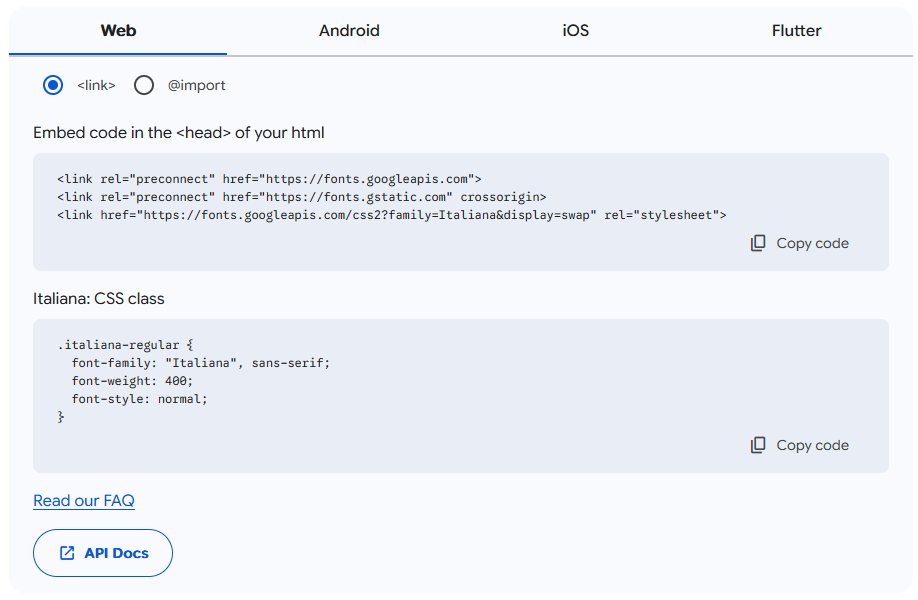
You can then inject the CSS to override Mews's default settings. E.g. to update the body font with our new Google font:
<style>
  :root {
    --font-body: 'Italiana', sans-serif;
  }
</style>
Further Support
Our aim is provide clear and comprehensive documentation to help you get the most out of your theme. However if you encounter any difficulties or bugs, or have any feedback or suggestions, please feel free to contact us here.